Avatar Starter Scene
This page will show you a sample scene named Avatar Starter Scene. It will break down how to control an Avatar like a player.
Here is a list of all the features:
- Scene with textured fences, floor, and skybox.
- Login screen that allows users to login anonymously or with their Genies account.
- Player controller that spawns the user Avatar and uses input to move, run, and jump the Avatar.
- A toggle to use mobile-friendly UI for input or keyboard and mouse input.
This page will be using version X.Y.Z of the Genies SDK Avatar package, but replace it with the latest package version.
Import the Sample Scene
Import with Bootstrap Wizard
From the top menu, select Tools > Genies > SDK Bootstrap Wizard window. At the bottom, click the Import Sample Scenes button.

Import with Package Manager
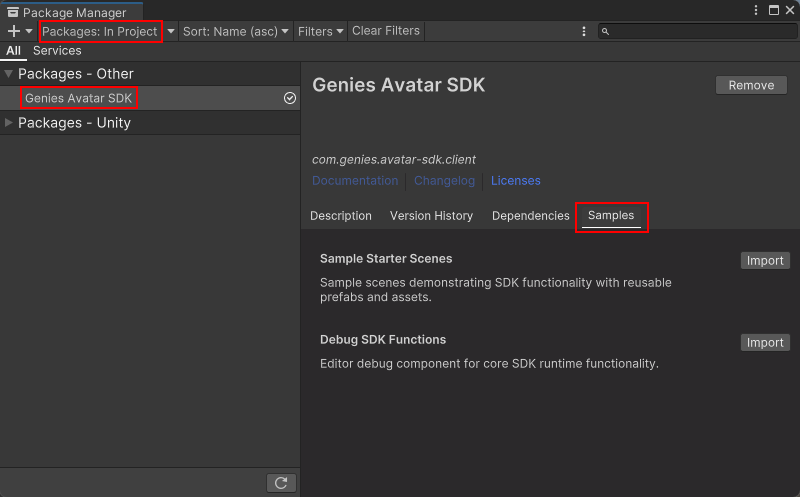
From the top menu, select Windows > Package Manager window. Then select Packages: In Project on the top left dropdown and also select the Genies Avatar SDK package on the left side menu.
Click the Samples tab and click the Import button next to the Sample Starter Scenes sample.
Open the Sample Scene
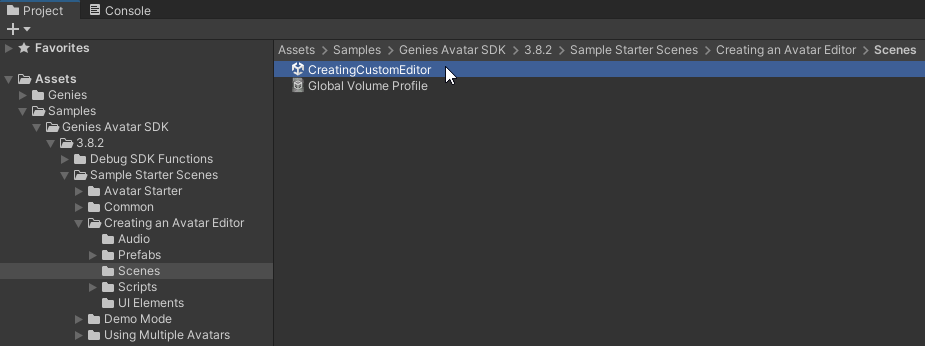
In your Project window, open the Assets > Samples > Genies Avatar SDK > X.Y.Z > Sample Starter Scenes > Avatar Starter > Scenes folder. Double-click the AvatarStarter scene to open it.
Test the Sample Scene
The next steps will show how to test the sample scene functionality.
Enable Touch Controls
In the Hierarchy, select the AvatarSpawn object. In the Inspector, make sure the Enable Touch Controls property is activated.
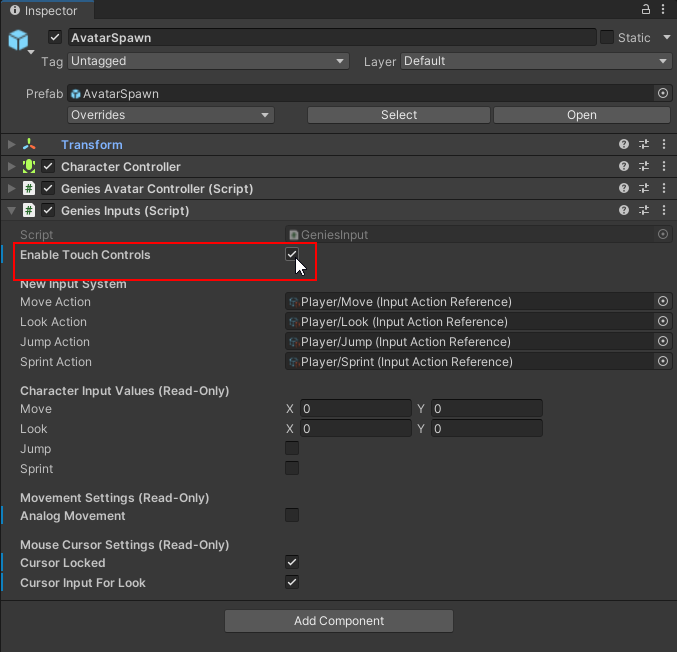
Touch controls allows for mobile devices to use a joystick UI and buttons to move and jump the Avatar.
Switch to Simulator Window
The sample scenes are optimized for a mobile device. In the Game window, switch the window to Simulator mode and choose a mobile device.
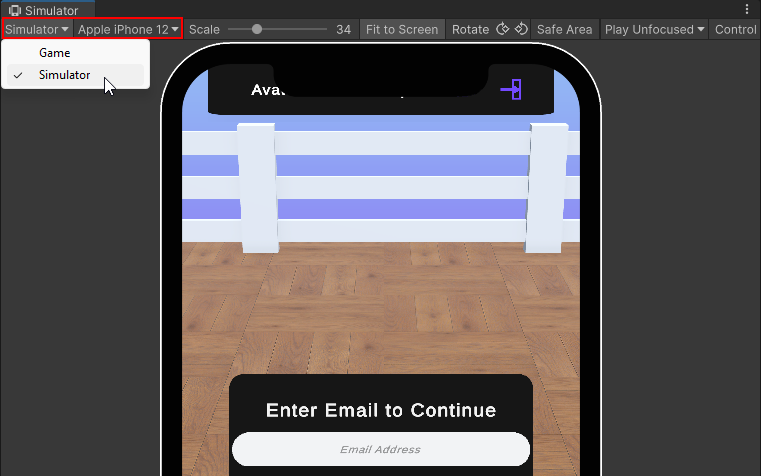
There is a known Unity issue if the Game and Simulator window are both open. Make sure to close any Game window while the Simulator window is open.
Login Anonymously
Press the Play button. Click the Anonymous Login button.
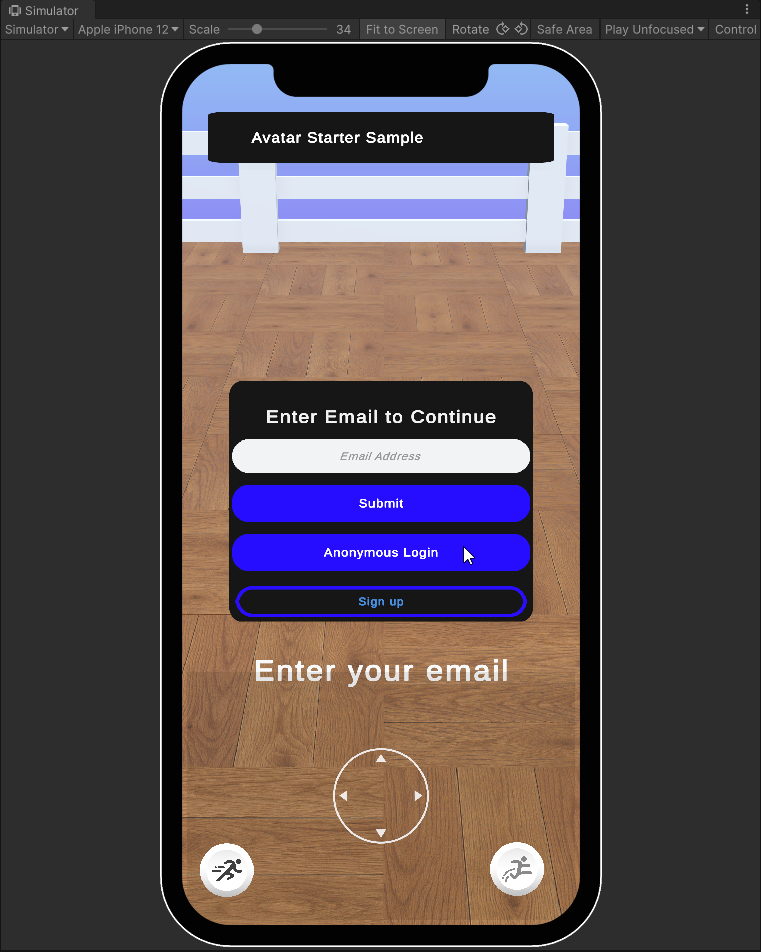
Anonymous login is a feature that allows users to not require a Genies login to use the Genies Avatar SDK.
See the User Login page for more information.
The limitations of anonymous login is that developers cannot use the Genies servers to remotely save the Avatar definitions. Developers will need to manage how the definition is saved and loaded.
Move the Avatar
Once logged in, move and look around using the bottom UI joystick and buttons.
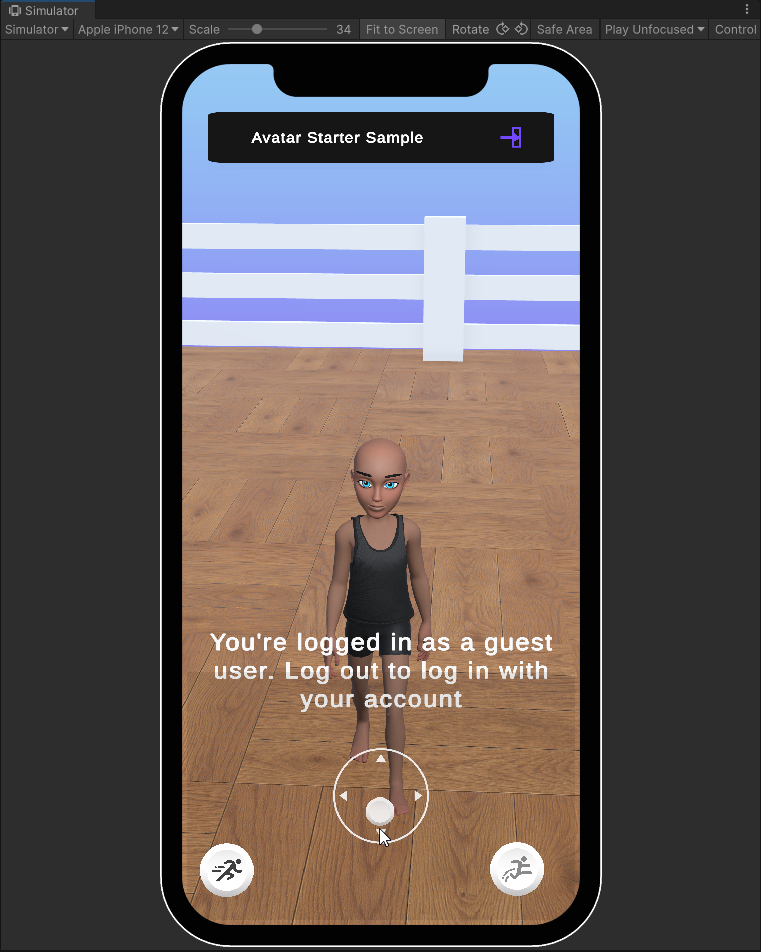
This is using a GeniesAvatarController script to spawn the Avatar and make it move with player input.
Conclusion
This sample scene can be used in a separate scene that needs a login or character controller for the player.
Check out the First Project with Avatars tutorial to see how to add this functionality to a new scene.