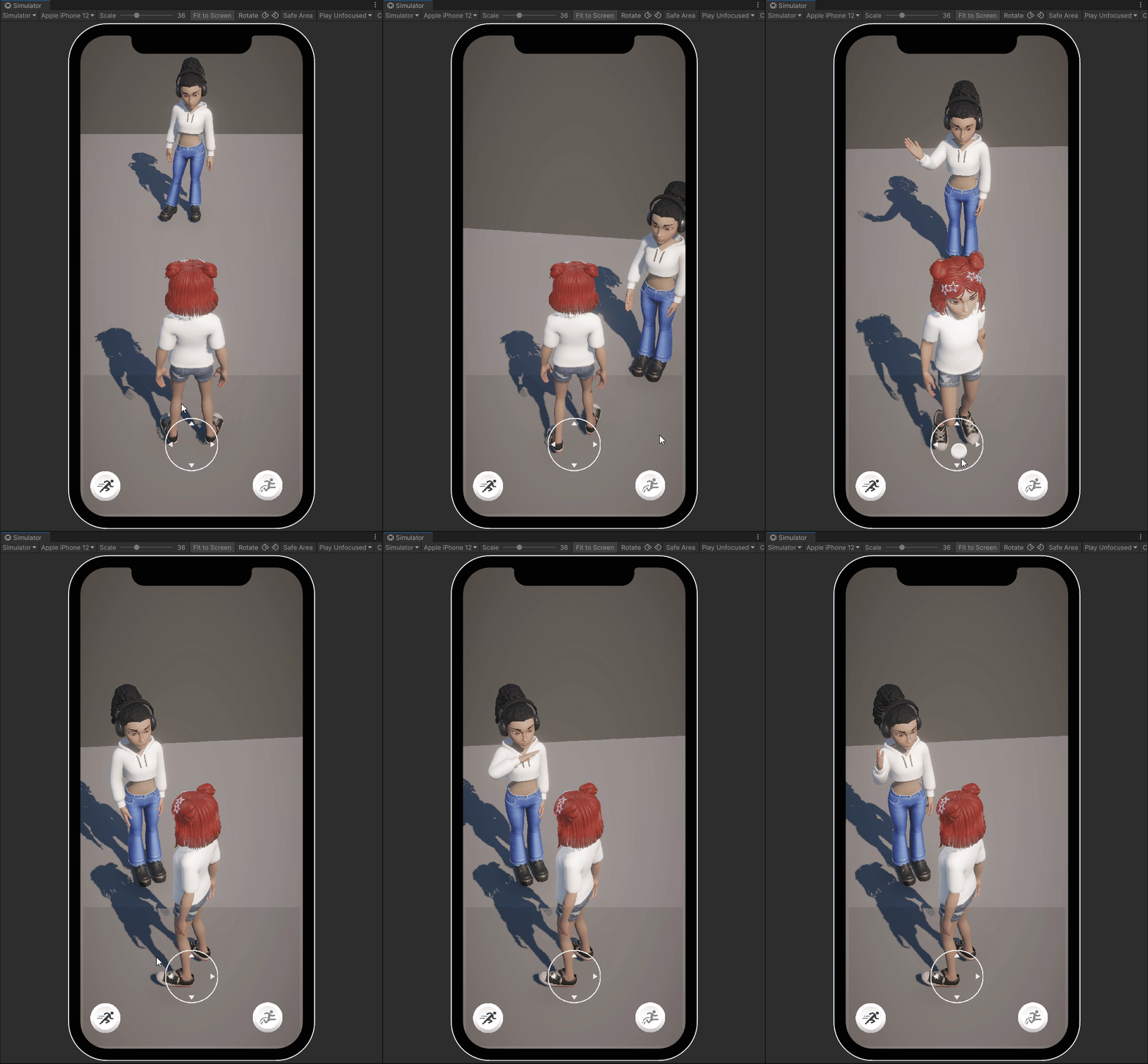
First Project with Avatars
This tutorial will introduce how the Genies Avatar SDK can be used for basic gameplay.
It will cover these topics:
- Creating a UI for users to login to their Genies accounts.
- Once logged in, spawning the user's global Avatar.
- Connecting the Avatar to a character controller.
Setup the Scene
Open Unity Project
Follow the Getting Started tutorial for directions on how to create a Unity project with the Genies Avatar SDK installed.
Open a New Scene
In the Project window, find a folder named Scenes and double click the SampleScene asset to open it.

This is scene is included by default when creating a new Unity project. If for some reason your Unity project does not have this folder or asset, then create a new folder named Scenes and create a new scene named SampleScene.
Add the Ground Plane
Create a ground object using the Create > 3D Object > Plane option in the Hierarchy window.

Add a Free Look Camera
Create a camera using the Create > Cinemachine > FreeLook Camera option in the Hierarchy window. Make sure to disable it in the Inspector window.
A FreeLook Camera is useful tool from the Cinemachine package for creating third person cameras that follow the player.
Create a Login UI
Open the Simulator Window
Click the top-left dropdown menu in the Game window and select Simulator. Then select a mobile device.

Create a UI Canvas
In the Hierarchy window, select the Create > UI > Canvas option and name it Login Canvas. In the Inspector window, set the UI Scale Mode property to Scale With Screen Size and set the Reference Resolution to X: 1080 and Y: 1920.

Create UI
Add the following UI elements as children to the Login Canvas:
- (Optional) Panel object for a background
- Text object named
Status Text - Button object named
Instant Login Button - Button object named
Logout Button - Input Field object named
Email Input Field - Button object named
Submit Email Button - Input Field object named
OTP Input Field - Button object named
Submit OTP Button - Button object named
Resend OTP Button - Button object named
Signup Button

You may need to import the TextMeshPro packages if the text is not appearing. See the Common Issues page for a breakdown.
Create the Login Controller Script
Create a New Script
In the Hierarchy window, select the Login Canvas object. In the Inspector window, click the Add Component button near the bottom and then select the bottom option to New Script. Name the script LoginController.

Add Code to the Script
Open the LoginController script.
Initial Code
Start by adding this initial code to create object references for the UI elements:
using UnityEngine;
using Genies.Sdk;
using TMPro;
using UnityEngine.UI;
public class LoginController : MonoBehaviour
{
[Header("UI References")]
[SerializeField] private TMP_Text statusText;
[SerializeField] private Button instantLoginButton;
[SerializeField] private Button logoutButton;
[SerializeField] private TMP_InputField emailInputField;
[SerializeField] private Button submitEmailButton;
[SerializeField] private TMP_InputField otpInputField;
[SerializeField] private Button submitOTPButton;
[SerializeField] private Button resendOTPButton;
[SerializeField] private Button signupButton;
}
On Submit Email Function
Add this function to the LoginController class:
// Triggered when the user clicks the "Submit Email" button
private async void OnSubmitEmail()
{
string email = emailInputField.text;
statusText.text = $"Email submitted: {email}";
(bool success, string errorMessage) = await Genies.Sdk.AvatarSdk.StartLoginEmailOtpAsync(email);
if (success)
{
statusText.text = "OTP sent successfully. Please check your email.";
}
else
{
statusText.text = "Error sending OTP: " + errorMessage;
}
}
This function uses StartLoginEmailOtpAsync to submit the inputted email and start the OTP login process. If it is a valid email, then the user should receive a email with an OTP verification code.
On Resend OTP Function
Add this function to the LoginController class:
// Triggered when the user clicks the "Resend OTP" button
private async void OnResendOTP()
{
statusText.text = "Resending OTP...";
(bool success, string errorMessage) = await Genies.Sdk.AvatarSdk.ResendEmailCodeAsync();
if (success)
{
statusText.text = "OTP resent successfully. Please check your email.";
}
else
{
statusText.text = "Error resending OTP: " + errorMessage;
}
}
This function uses ResendEmailCodeAsync to resend a new OTP to the email that requested the initial OTP. It's good practice to have this functionality in case the first OTP failed to send or the user deleted the message by mistake.
On Submit OTP Function
Add this function to the LoginController class:
// Triggered when the user clicks the "Submit OTP" button
private async void OnSubmitOTP()
{
string otpCode = otpInputField.text;
statusText.text = $"OTP submitted: {otpCode}";
(bool success, string errorMessage) = await Genies.Sdk.AvatarSdk.SubmitEmailOtpCodeAsync(otpCode);
if (success)
{
statusText.text = "OTP verified successfully. User logged in.";
}
else
{
statusText.text = "Error verifying OTP: " + errorMessage;
}
}
This function uses SubmitEmailOtpCodeAsync to submit the inputted OTP verification code. If the code is correct, then it will sign in the user to their Genies account and create autherization credential tokens so that user can instant login the next time.
On Instant Login Function
Add this function to the LoginController class:
// Triggered when the user clicks the "Instant Login" button
private async void OnInstantLogin()
{
statusText.text = "Attempting instant login...";
var result = await Genies.Sdk.AvatarSdk.TryInstantLoginAsync();
if (result.isLoggedIn)
{
statusText.text = "Instant login successful.";
}
else
{
statusText.text = "Instant login failed.";
}
}
This function uses TryInstantLoginAsync to login using stored autherization credential tokens instead of doing the OTP workflow. This will only work if the user has signed in before with the OTP workflow.
On User Login Function
Add this function to the LoginController class:
// Triggered when the user successfully logs in
private void OnUserLogin()
{
statusText.text = "User logged in.";
this.gameObject.SetActive(false);
}
This function deactivates the login UI object to hide it once the user is logged in.
On Logout Function
Add this function to the LoginController class:
// Triggered when the user clicks the "Logout" button
private async void OnLogout()
{
statusText.text = "Logging out...";
await Genies.Sdk.AvatarSdk.LogOutAsync();
statusText.text = "Logged out.";
}
This function uses LogOutAsync to log out the user if they are logged in to their Genies account.
On Signup Function
Add this function to the LoginController class:
// Triggered when the user clicks the "Sign Up" button
public void OnSignUp()
{
Application.OpenURL(Genies.Sdk.AvatarSdk.UrlGeniesHubSignUp);
}
This function uses the UrlGeniesHubSignUp parameter to open the Genies Hub signup website on the user's browser.
Start Function
Add this function to the LoginController class:
private void Start()
{
statusText.text = "Ready";
// Button listeners
submitEmailButton.onClick.AddListener(OnSubmitEmail);
submitOTPButton.onClick.AddListener(OnSubmitOTP);
logoutButton.onClick.AddListener(OnLogout);
instantLoginButton.onClick.AddListener(OnInstantLogin);
resendOTPButton.onClick.AddListener(OnResendOTP);
signupButton.onClick.AddListener(OnSignUp);
// Event listeners
Genies.Sdk.AvatarSdk.Events.UserLoggedIn += OnUserLogin;
}
This function will add listeners to all the button click events and also to the GeniesSdkAvatar.Events.UserLoggedIn event which is fired when a user logs in.
On Destroy Function
Add this function to the LoginController class:
private void OnDestroy()
{
// Remove button listeners
submitEmailButton.onClick.RemoveListener(OnSubmitEmail);
submitOTPButton.onClick.RemoveListener(OnSubmitOTP);
logoutButton.onClick.RemoveListener(OnLogout);
instantLoginButton.onClick.RemoveListener(OnInstantLogin);
resendOTPButton.onClick.RemoveListener(OnResendOTP);
signupButton.onClick.RemoveListener(OnSignUp);
// Clean up event listeners
Genies.Sdk.AvatarSdk.Events.UserLoggedIn -= OnUserLogin;
}
This function will remove all button and event listeners when the script is destroyed. It is good coding practice to cleanup event listeners when destroying an object to avoid memory leak.
Add the UI References
Save the code and return to Unity. In the Hierarchy window, select the Login Canvas object. Drag and drop all the needed objects from the Hierarchy window into the reference input fields in the Inspector window.

Test the Code
Enter Play mode. You should be able to login which will hide the login UI.

Add the Character Controller
Import the Avatar Starter Sample Scene
From the top menu, select Windows > Package Manager window. Then select Packages: In Project on the top left dropdown and also select the Genies Avatar SDK package on the left side menu.
Click the Samples tab and click the Import button next to the Avatar Starter Scene sample.
![]()
Add the Character Controller Prefab
In the Project window, open the Assets > Samples > Genies Avatar SDK > X.Y.Z > Avatar Starter Scene > Prefabs folder. Drag the AvatarSpawn prefab into the scene.

This character controller prefab has script components that will control the Avatar by moving and jumping using user input.
Enable Touch Controls
In the Hierarchy, select the AvatarSpawn object. In the Inspector, make sure the Enable Touch Controls property is enabled.

This property allows mobile devices to use UI joystick and buttons for input.
Add the Load My Avatar Script
Create a new empty Game Object named LoadMyAvatar. In the Project window, open the Assets > Samples > Genies Avatar SDK > X.Y.Z > Avatar Starter Scene > Scripts folder. Drag the LoadMyAvatar script into the LoadMyAvatar component list.
![]()
This script will load the Avatar once the user is logged in. It will also connect the animations and input systems to the character controller prefab scripts.
Add the Event System Prefab
In the Project window, open the Assets > Samples > Genies Avatar SDK > X.Y.Z > Avatar Starter Scene > Prefabs > MobileControls folder. Drag and drop the UI_EventSystem prefab into the scene.

If there is already an EventSystem game object in the Hierarchy, make sure to delete that one. This is usually added by default when creating a UI Canvas object. This prefab has defined properties to work with the character controller system.
Add the Touch Controls UI
In the Project window, open the Assets > Samples > Genies Avatar SDK > X.Y.Z > Avatar Starter Scene > Prefabs > MobileControls folder. Drag and drop the GeniesTouchZones prefab into the scene.

This prefab has the UI for the move joystick, run button, and jump button.
Connect the Touch Controls UI to the Input
In the Hierarchy, select the GeniesTouchZones object. In the Inspector, set the Genies Inputs property to the AvatarSpawn object reference.

This property will activate the touch controls UI and use the input for controlling the Avatar.
Find the Avatar Animator
In the Project window, open the Packages > Genies Avatar SDK > Internal > Avatars Core > Runtime > Animation > GeniesCharacterController folder. Inside is the GeniesAvatarAnimator asset needed in the next step.
![]()
This folder contains a default animator and animation assets used by the Avatar Starter sample scene to animate the Avatar as it moves and jumps.
Add the Component Properties
In the Hierarchy window, select the LoadMyAvatar object and open the Inspector window.
Add the following properties to the LoadMyAvatar component:
- Add the UI_EventSystem object to the Input System UI Input Module property.
- Add the AvatarSpawn object to the Loaded Controller property.
- Add the GeniesAvatarAnimator asset to the Optional Controller property.
- Add the FreeLook Camera object to the Cinemachine Free Look Settings property.

Test the Character Controller
Enter Play mode. After logging in, the Avatar should spawn and be controllable with the touch controls.

Conclusion
This concludes the first project tutorial. With a working character controller, some next steps could be incorporating the Avatar Editor or adding NPCs with local Avatar definitions.