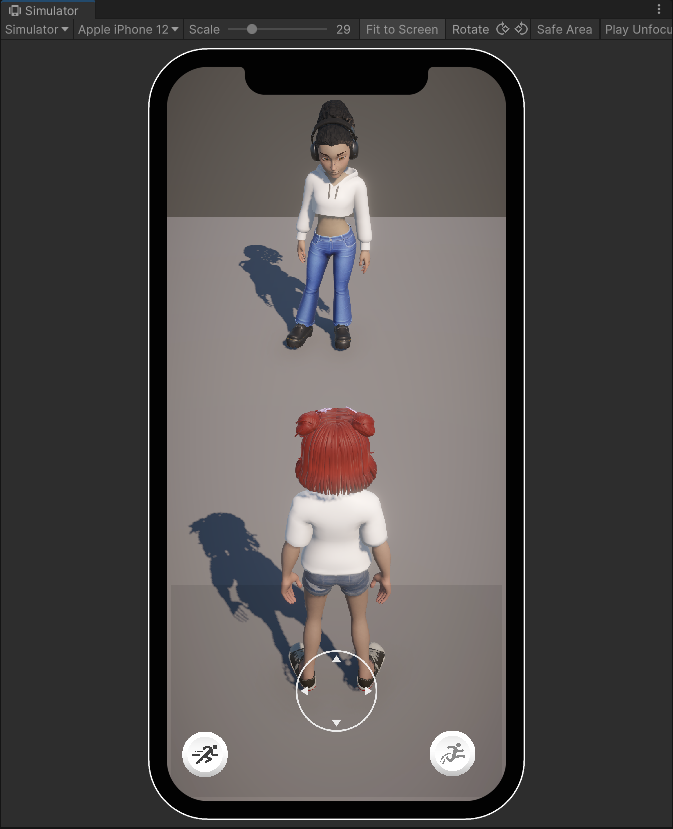
NPC Avatar
The next section is going to spawn an NPC Avatar using a locally-stored Avatar definition.
Save an Avatar Definition
The Creating an Avatar Editor sample scene has an example of an Avatar Editor. You can modify this scene to locally save an Avatar definition once you are done creating an Avatar.
Open the Sample Scene
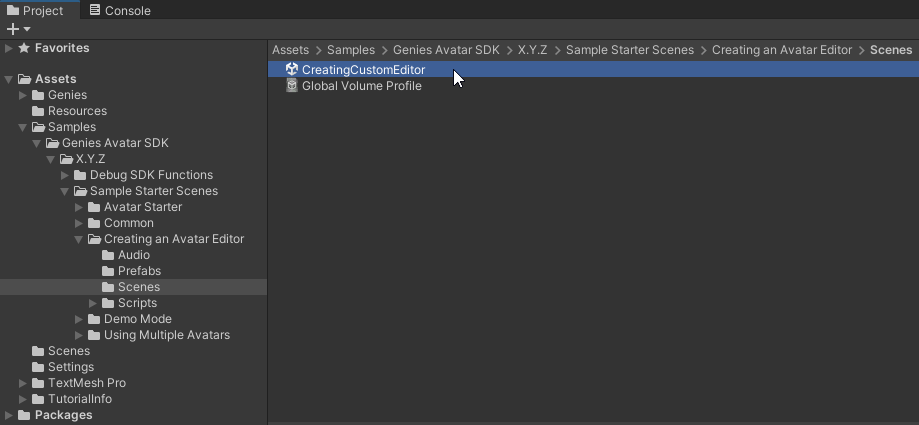
In the Project window, open the Assets > Samples > Genies Avatar SDK > X.Y.Z > Sample Starter Scenes > Creating an Avatar Editor > Scenes folder. Double-click the CreatingCustomEditor scene to open it.
Open the Script
In the Project window, open the Assets > Samples > Genies Avatar SDK > X.Y.Z > Sample Starter Scenes > Creating an Avatar Editor > Scripts > Setup and State folder. Double-click the EditorInitializer script to open it.
Edit the Script
This script has the logic for the Save button. Modify the SaveAvatar function so it also saves the user's Avatar definition as a locally stored GameObject and JSON file using the SaveAvatarDefinitionLocallyAsync function:
        private async UniTask SaveAvatar()
        {
            if (_isSaving)
            {
                return;
            }

            _isSaving = true;

            try
            {
                await AvatarSdk.SaveUserAvatarDefinitionAsync(_avatar);
                await AvatarSdk.SaveAvatarDefinitionLocallyAsync(_avatar, "Test-Profile");
            }
            finally
            {
                _isSaving = false;
            }
        }
Play the Scene
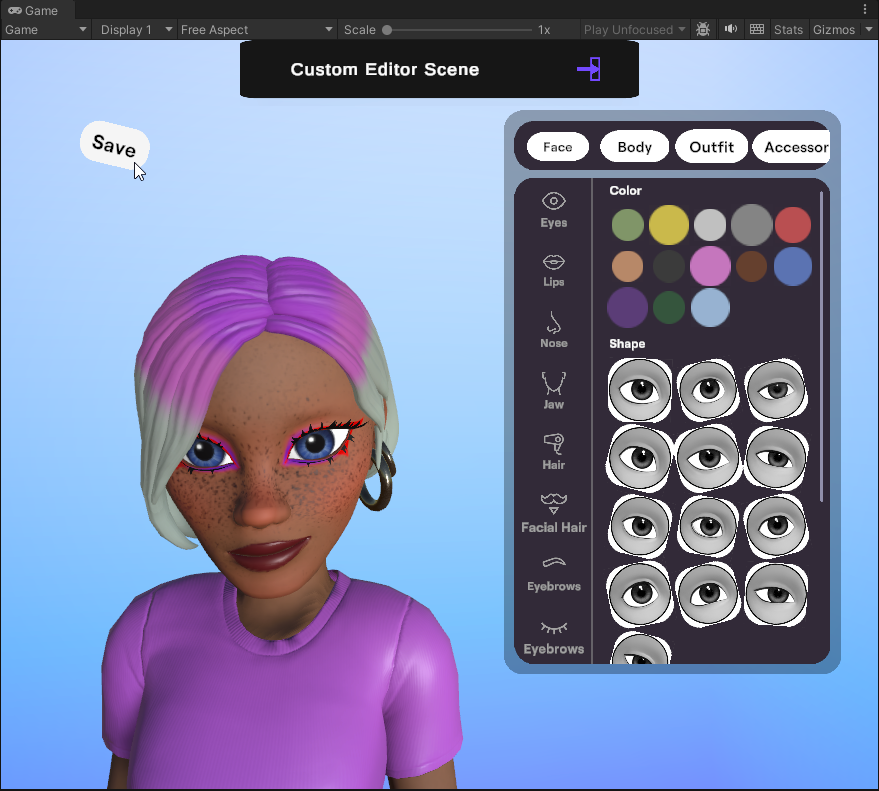
Save the code and then press the Play button. Use the Avatar Editor to create the look of the NPC. Once finished, click the Save button to locally store the definition you created. Exit Play mode.
Find the Test Profile Definition
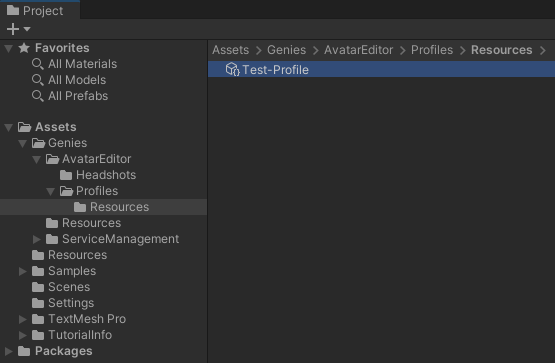
In the Project window, open the Assets > Genies > AvatarEditor > Profiles > Resources folder. Make sure the Test-Profile definition is successfully created.
Create NPC Spawn Object
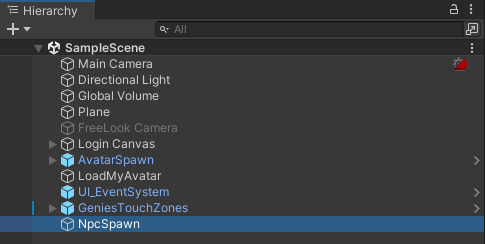
Open the SampleScene in the Assets > Scenes folder. Create a new empty Game Object named NpcSpawn.
Create NPC Controller Script
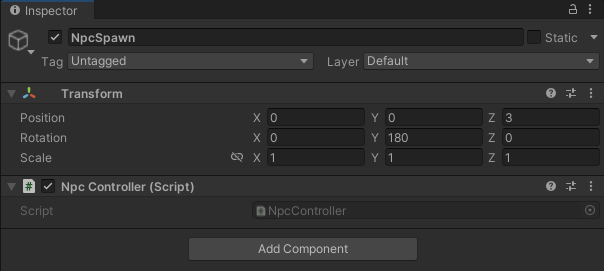
In the Hierarchy window, select the NpcSpawn object. In the Inspector window, click the Add Component button near the bottom and then select the bottom option to New Script. Name the script NpcController.
Then set the Position property to Z: 3 and Rotation property to Y: 180.
Add Code to the Script
Open the NpcController script and add this code:
using System.Collections;
using System.Collections.Generic;
using UnityEngine;
using Genies.Sdk;

public class NpcController : MonoBehaviour
{
    void Start()
    {
        if (!AvatarSdk.IsLoggedIn)
        {
            AvatarSdk.Events.UserLoggedIn += LoadNpc;
            return;
        }

        LoadNpc();
    }

    private void OnDestroy()
    {
        AvatarSdk.Events.UserLoggedIn -= LoadNpc;
    }

    private async void LoadNpc()
    {
        var npcAvatar = await AvatarSdk.LoadFromLocalAvatarDefinitionAsync("Test-Profile");
        npcAvatar.Root.transform.parent = this.transform;
        npcAvatar.Root.transform.position = this.transform.position;
        npcAvatar.Root.transform.rotation = this.transform.rotation;
    }
}
The AvatarSdk.LoadFromLocalAvatarDefinitionAsync("Test-Profile"); method is loading the locally stored Avatar definition that you created earlier.
Test the Code
Save the code and enter Play mode. The NPC Avatar should load in front of the player Avatar.