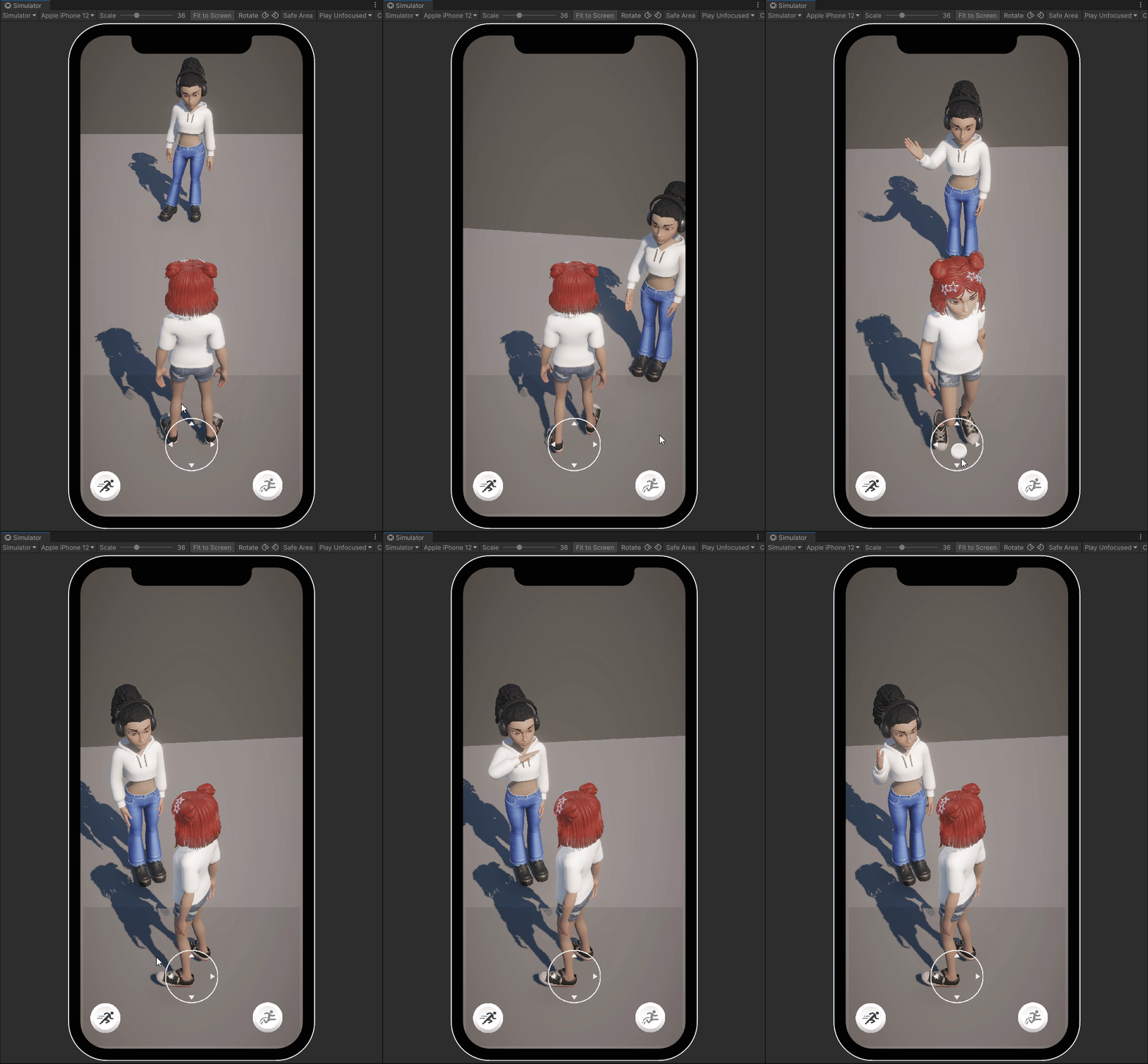
Custom Animation
The next section is going to add a custom animation from Mixamo so the NPC waves when the player gets near it.
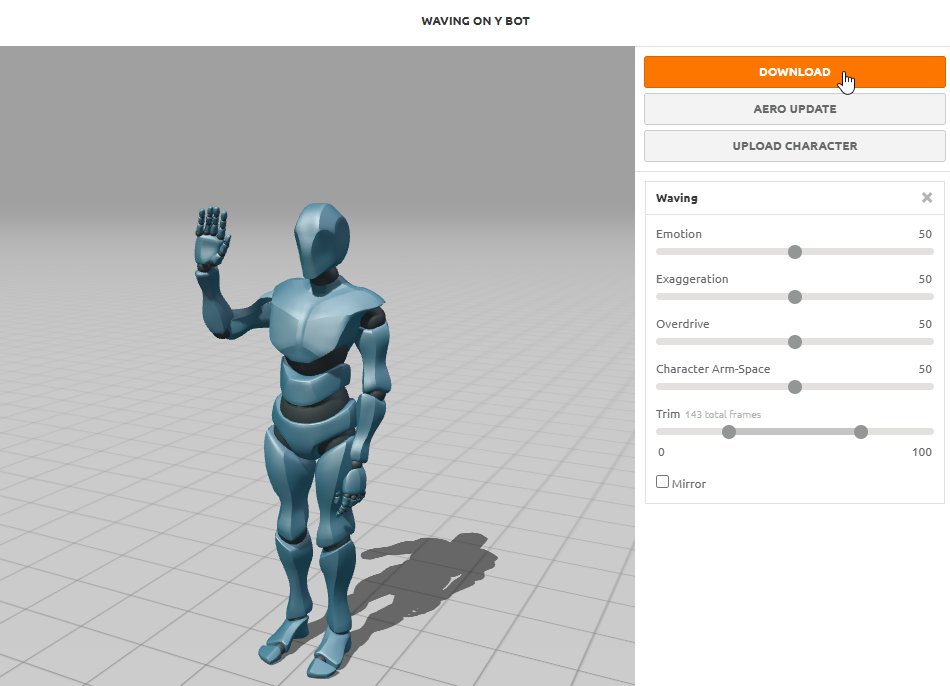
Download a Wave Animation
Download a wave animation that is formatted for humanoid models. A recommended site is Mixamo by Adobe that offers a wide variety of animations for humanoids for free.
Create an Animator Controller
In the Project window, right click and select Create > Animator Controller. Name it NpcAnimator.
Add Idle Animation
Open the Animator window by double-clicking the NpcAnimator asset. In the Project window, search for idle in the search bar in the Packages directory. Drag the DefaultIdle animation into the Animator window.
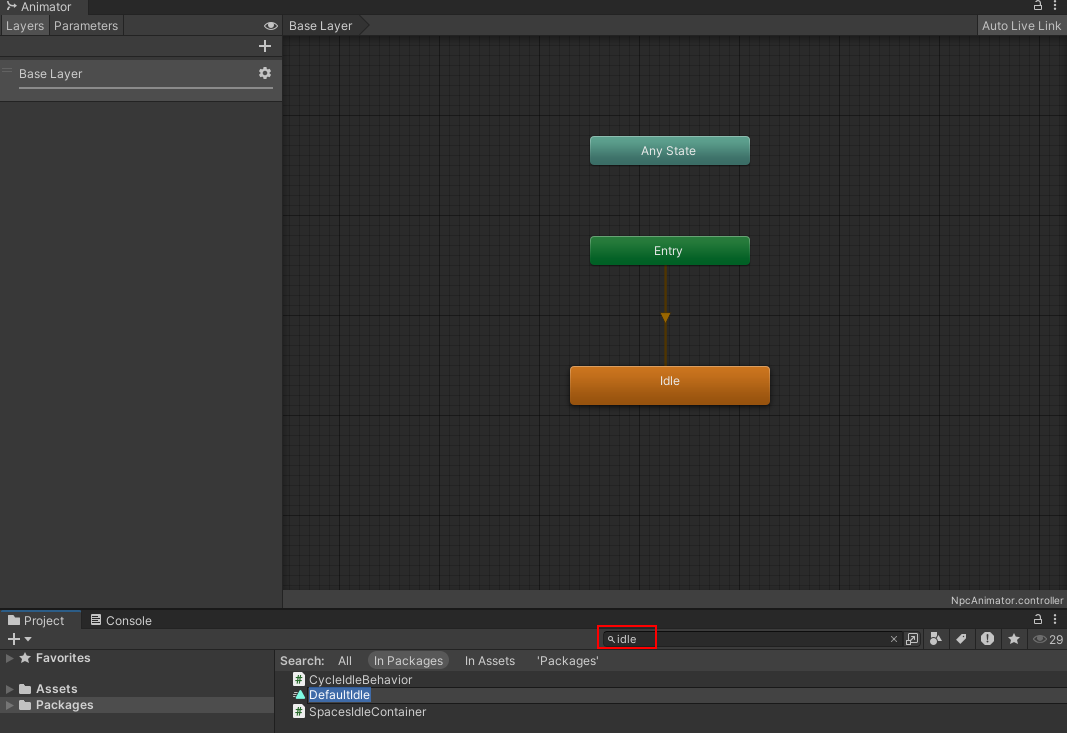
This is a default idle animation provided by the Avatar SDK. It's deeply nested in the Packages folders so its easier to search its name.
Apply Humanoid Rig to Wave Animation
Drag and drop the downloaded wave animation asset into the Project window. Select the wave animation asset and open the Inspector window. In the Rig tab, set the Animation Type property to Humanoid. Then click the Apply button.
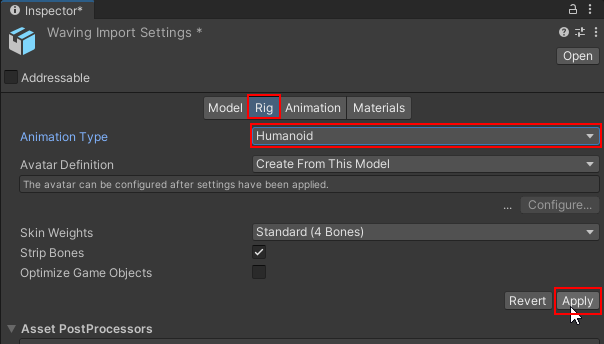
The Genies Avatar will only work with animations that are rigged for humanoid models.
Add the Wave Animation
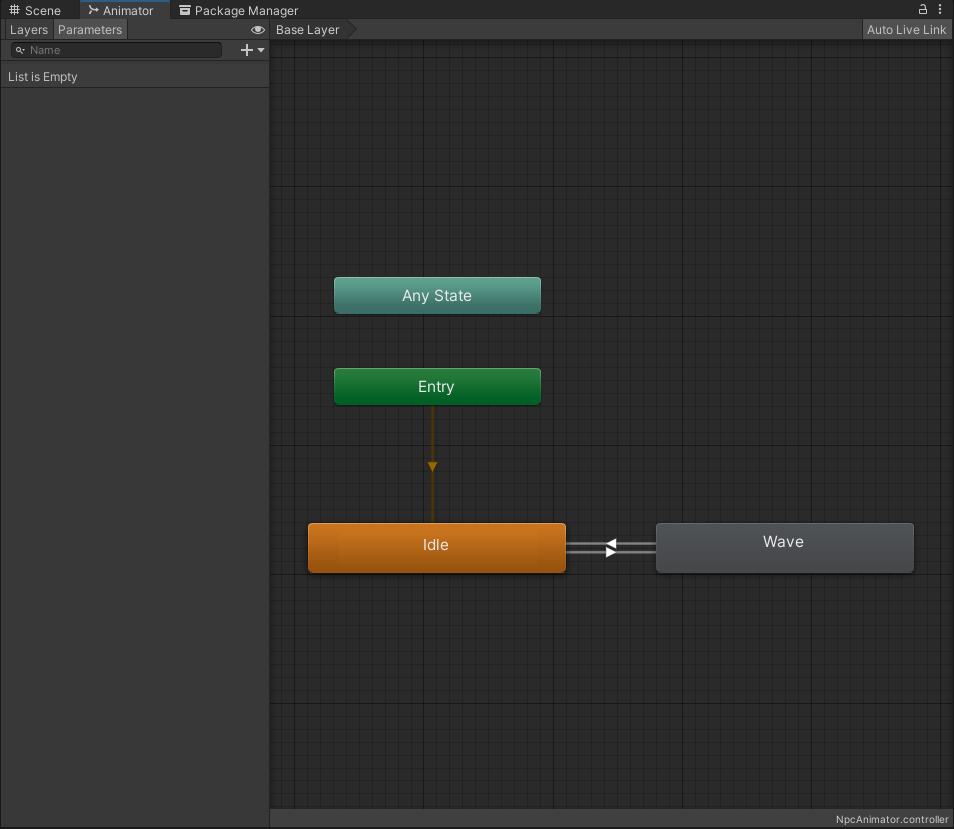
Open the Animator window by double clicking the NpcAnimator asset. Drag and drop the wave animation asset into the Animator window. Rename the animation state to Wave. Then add transitions to and from the idle animation state.
Add a Waving Trigger
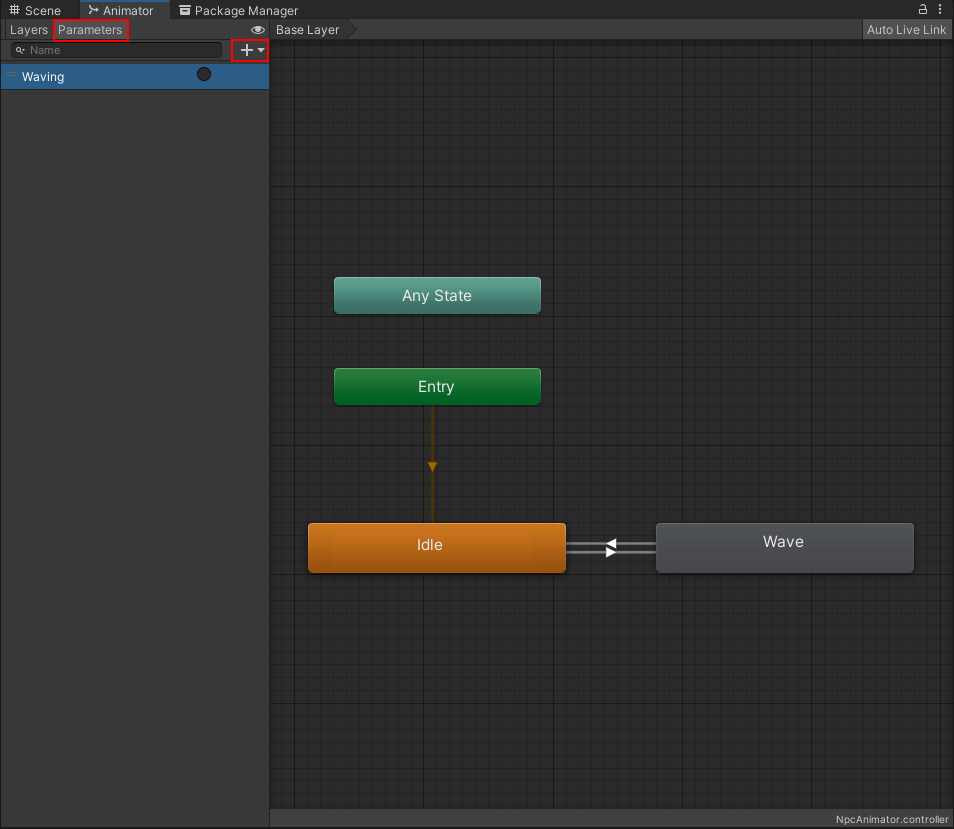
In the Animator window, click the Parameters tab at the top left and click the plus sign. Create a new Trigger parameter named Waving.
Trigger the Wave Animation Transition
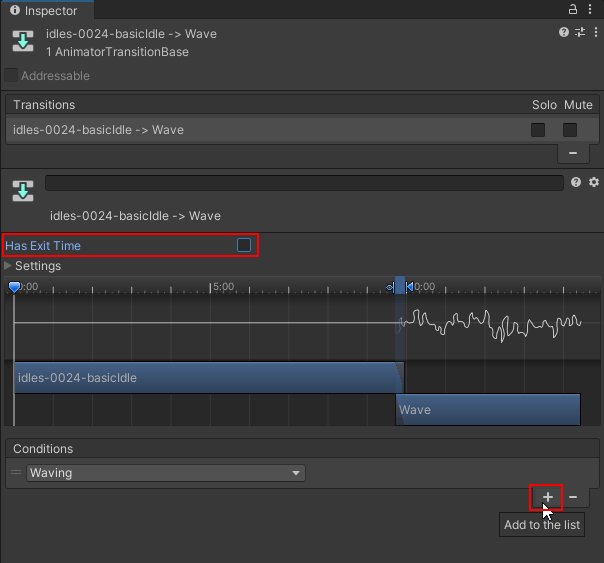
In the Animator window, select the transition going from the idle state to the wave state. In the Inspector window, make sure the Has Exit Time property is disabled and then add the Waving trigger to the Conditions list.
Add the Player Tag
Select the AvatarSpawn object and open the Inspector window. Set the Tag property to Player.
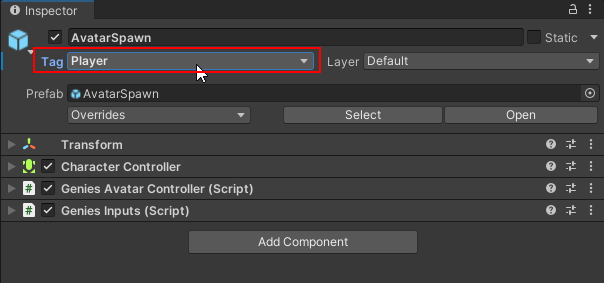
The player needs a tag so the NPC can determine if it did enter its collider and wave when the player is near.
Update the Code
Open the NpcController script and update the code to this:
using System.Collections;
using System.Collections.Generic;
using UnityEngine;
using Genies.Sdk;

public class NpcController : MonoBehaviour
{

    [SerializeField] private RuntimeAnimatorController npcAnimatorController;
    private Animator npcAnimator;
    private GameObject player;
    private float rotationSpeed = 5f;

    void Start()
    {
        if (!AvatarSdk.IsLoggedIn)
        {
            AvatarSdk.Events.UserLoggedIn += LoadNpc;
            return;
        }

        LoadNpc();
    }

    private void OnTriggerEnter(Collider other)
    {
        if (other.gameObject.tag == "Player")
        {
            npcAnimator.SetTrigger("Waving");
            player = other.gameObject;
        }
    }

    private bool IsWaving()
    {
        AnimatorStateInfo stateInfo = npcAnimator.GetCurrentAnimatorStateInfo(0);
        return stateInfo.IsName("Wave");
    }

    void Update()
    {
        if(player != null && IsWaving())
        {
            RotateToPlayer();
        }
    }

    private void RotateToPlayer()
    {
        Vector3 direction = player.transform.position - transform.position;
        direction.y = 0f; // prevent tilting

        if (direction.sqrMagnitude < 0.001f) return;

        Quaternion targetRotation = Quaternion.LookRotation(direction);
        transform.rotation = Quaternion.Slerp(
            transform.rotation,
            targetRotation,
            rotationSpeed * Time.deltaTime
        );
    }

    private void OnDestroy()
    {
        AvatarSdk.Events.UserLoggedIn -= LoadNpc;
    }

    private async void LoadNpc()
    {
        var npcAvatar = await AvatarSdk.LoadFromLocalAvatarDefinitionAsync("Test-Profile");
        npcAvatar.Root.transform.parent = this.transform;
        npcAvatar.Root.transform.position = this.transform.position;
        npcAvatar.Root.transform.rotation = this.transform.rotation;
        npcAvatar.SetAnimatorController(npcAnimatorController);
        npcAnimator = npcAvatar.Root.GetComponent<Animator>();
    }
}
This new code will set the Animator Controller to the NPC. It will also rotate to face the player and trigger the wave animation if the player collides with the NPC's collider.
Add the Collider
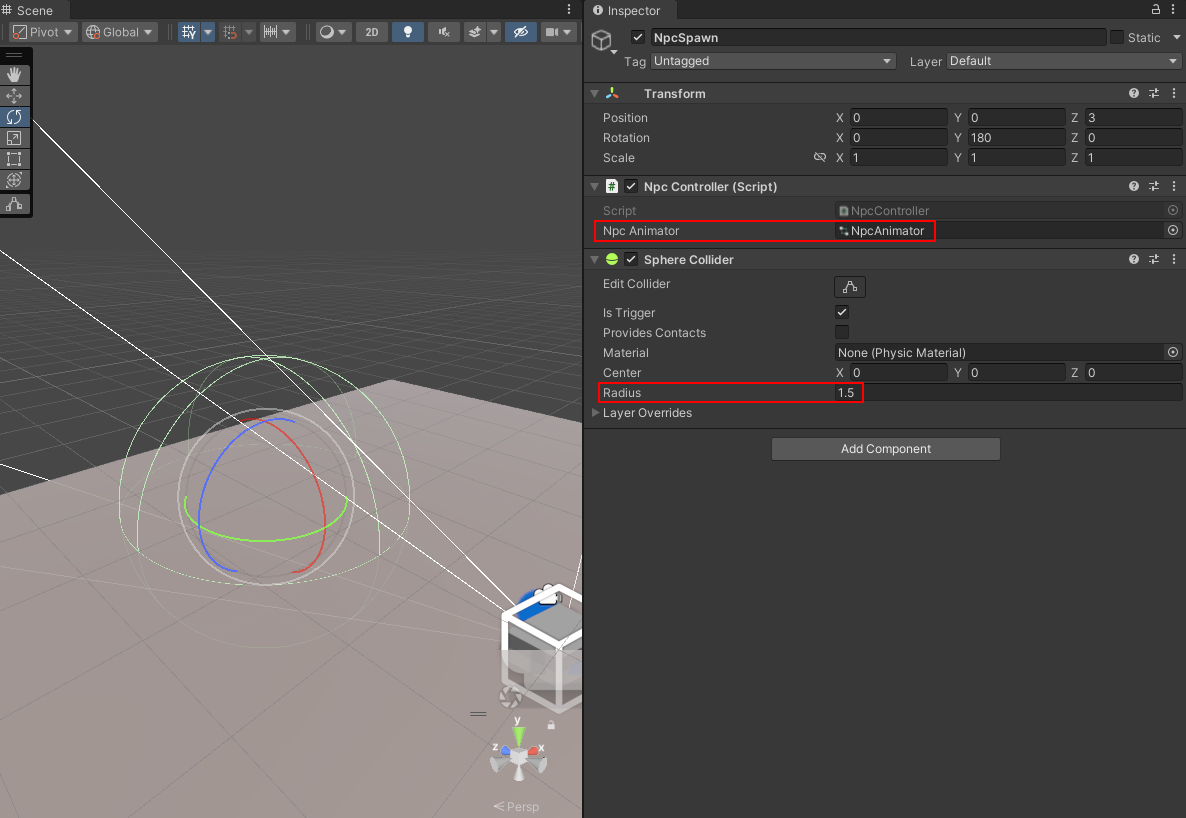
Select the NpcSpawn object and open the Inspector window. Add a Sphere Collider component and set the Radius property to 1.5. Then set the Npc Animator property to the newly created Npc Animator Animator Controller.
Test the Project
Enter Play mode. The NPC should trigger the wave animation and rotate to the player when the player gets close enough.