Installation
Once you meet the prerequisites, the Genies Avatar SDK can be installed using the Bootstrap Wizard tool.
Create a Unity Project
Open Unity Hub and click the New project button at the top right. Select a suitable Editor version option. Then select the Universal 3D template and click Create Project.
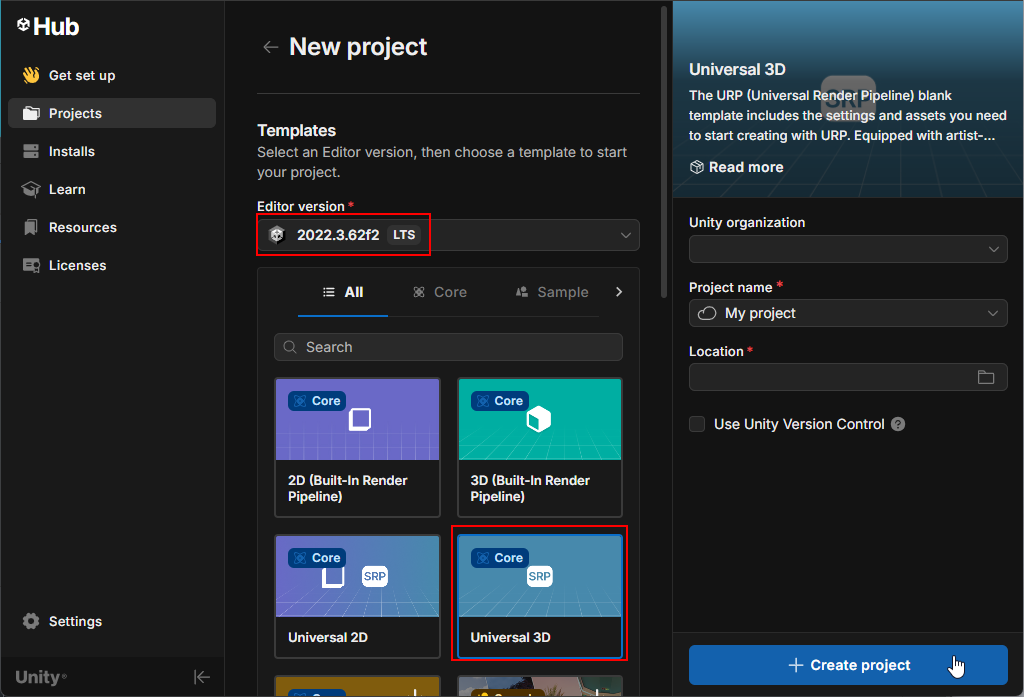
The Genies Avatar SDK needs to be used with a project that supports the Universal Render Pipeline (URP). The Universal 3D template is a blank URP project. You may need to download the template before being able to create a project with it.
Install the Package
If you are installing the Genies Art Forge SDK and Genies Avatar SDK on the same project, then the two packages will become intrinsically linked because they share common files. Please refer to the Common Issues page for best practices.
Add the Package
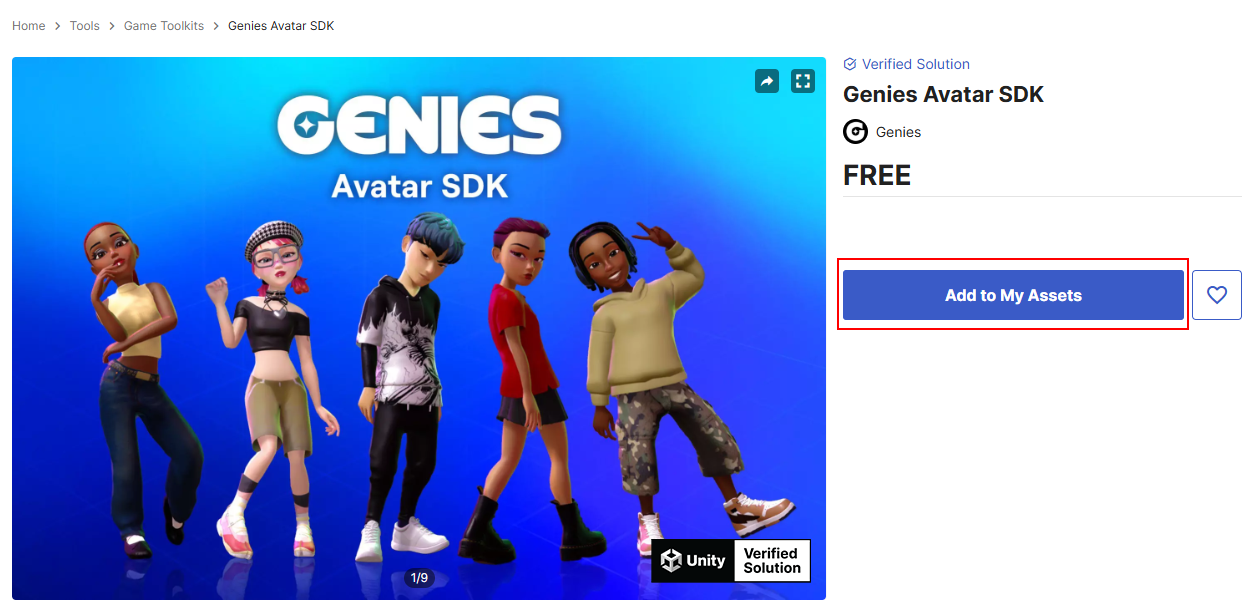
Go to the Unity Asset store page for the Genies Avatar SDK package.
Click the Add to My Assets button.
Download the Package
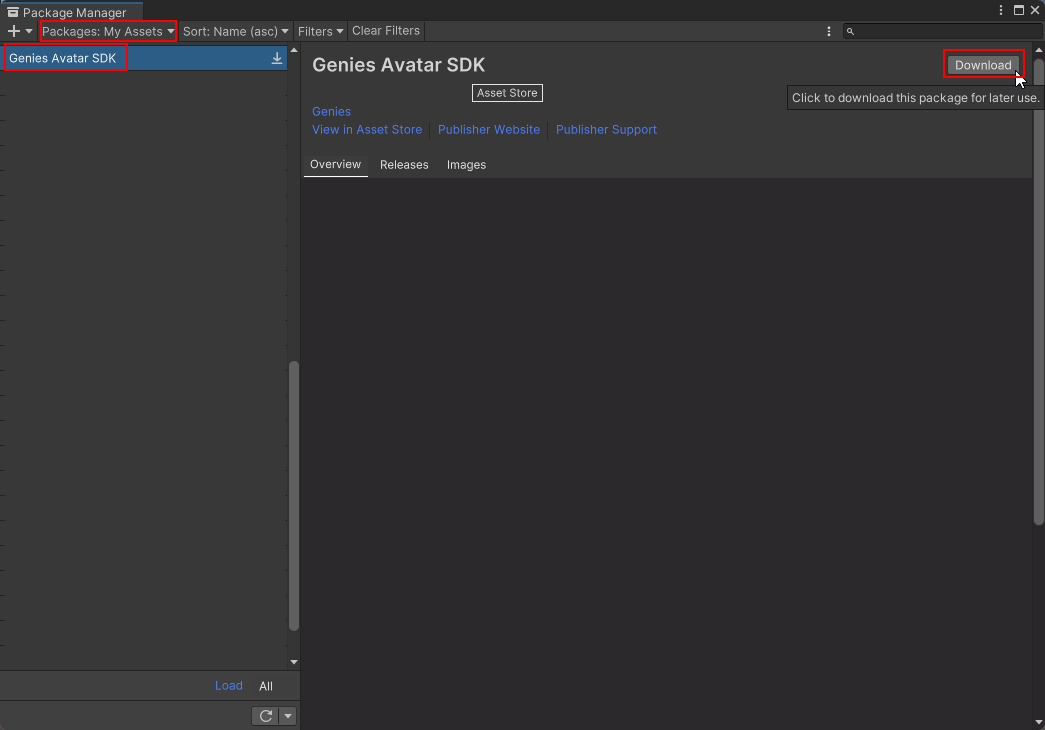
In Unity, click the top dropdown menu Windows > Package Manager. When the Package Manager window opens, change the top left option to Packages: My Assets. Then search and select the Genies Avatar SDK package in the left side list. Click the Download button at the top right.
Import the Package
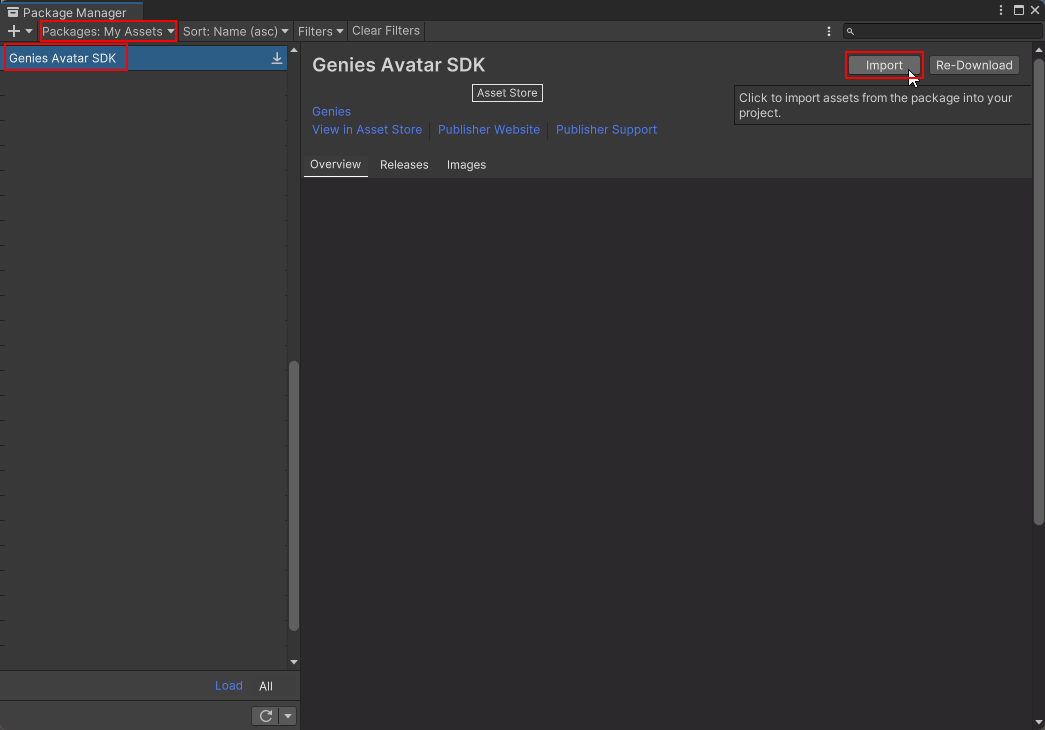
Once the package is downloaded, click the Import button at the top right.
Import All Assets
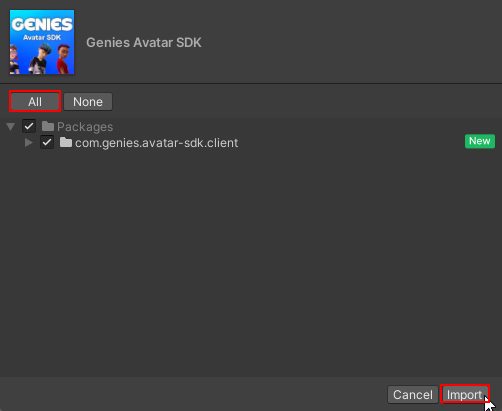
A window will popup with import settings, click the All button at the top left. Then click the Import button at the bottom right.
Ignore the Restart
After the import is complete, a warning pop-up may appear requesting to restart the editor. Click the No button.

Restarting the Unity Editor to enable the backends is not required until the Genies Avatar SDK is successfully installed using the Bootstrap Wizard in the following steps.
Help Genies Improve
A warning popup may appear to let you know that Genies gathers information to help improve the Genies Avatar SDK. Press the OK button.

Use the Bootstrap Wizard
The Genies Avatar SDK Bootstrap Wizard is a tool to setup the Unity project so the Genies Avatar SDK is successfully installed and can be built to the desired platform.
Open the Bootstrap Wizard
Select Tools > Genies > SDK Bootstrap Wizard from the top dropdown menu.

The Bootstrap Wizard window will open automatically after importing the Genies Avatar SDK package.
Configure the Prerequisites
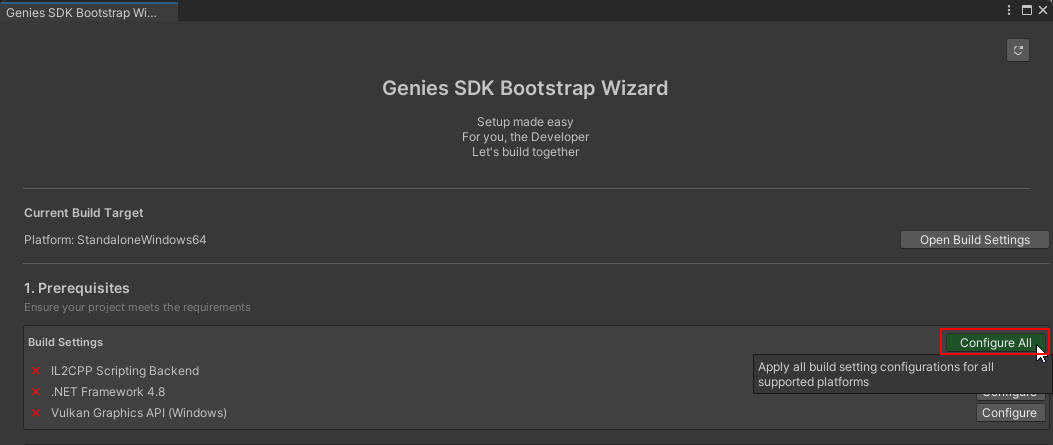
In the Genies SDK Bootstrap Wizard window, click the Configure All button in the Prerequisites section.
Ignore the Restart
If the Graphic API was fixed, then a popup will appear prompting you to restart the Unity Editor. Click the No button.

Import TextMesh Pro Essential Resources
Click the Import button next to TextMesh Pro Essential Resources.
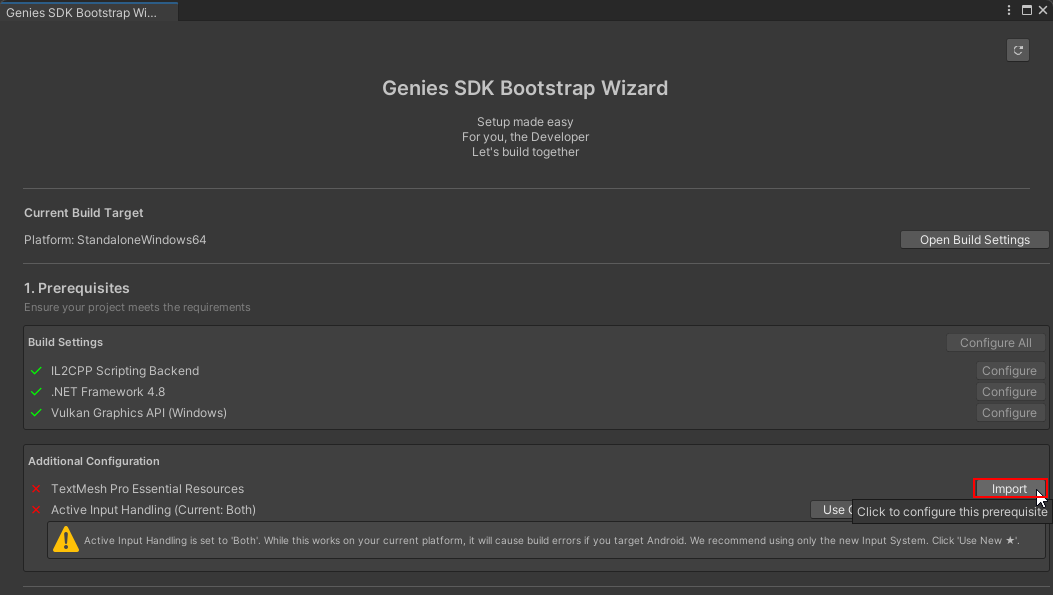
TextMeshPro is a external package that is used for UI elements like text and buttons. It is required to import the TMP Essential Resources in order for you to use UI elements.
Import All Assets
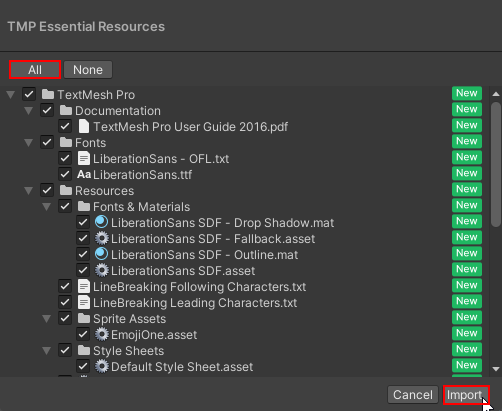
When the import window opens, click the All button at the top left, followed by the Import button at the bottom right.
Set Active Input Handling to New
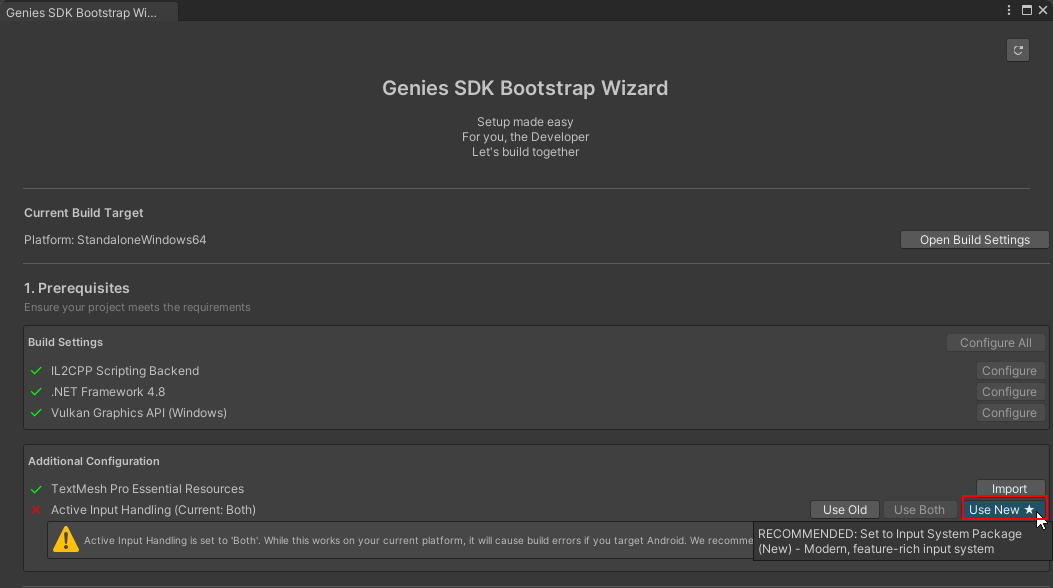
Once all the prerequisites are fixed, click the Use New button to upgrade the Active Input Handling.
Restart the Unity Editor
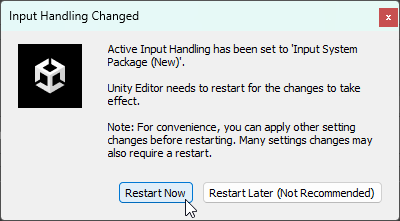
Updating the Active Input Handling will open a window prompting you to restart Unity. Click the recommended Restart Now button.
Try Demo Mode
This is optional but you can now test the Demo Mode sample scene before having to create a Genies account and configure API credentials. Click the Import Sample Scenes button at the bottom of the Bootstrap Wizard.
Check out the Demo Mode sample scene page for more information.
