Registration
Now that the Unity project has the Genies Avatar SDK installed, it is required to create a Genies account and register your project. This allows the APIs to fetch your authentication tokens and store your Genies data.
Create a Genies Account
Open the Developer Portal
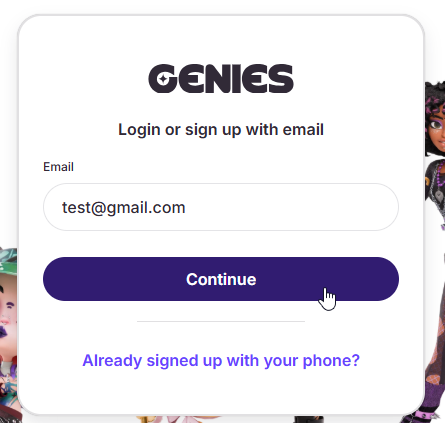
Navigate to the Developer Portal page. Start the account creation by typing your email into the input field and clicking the Continue button.
Finish the Sign Up
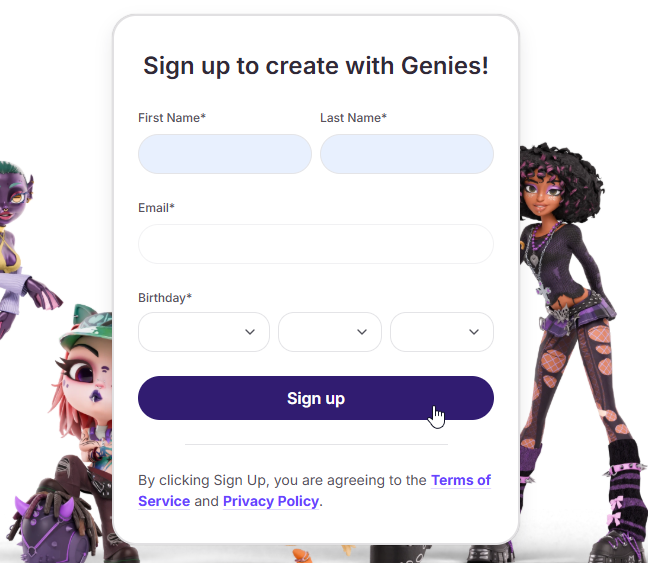
Fill out the necessary information. Then click the Sign up button to create your Genies account.
Create a Genies App
Click the App Creation Button
Once you finish the account creation, sign into Developer Portal using the email OTP. Then click the circle plus-sign button to create your first Genies app.
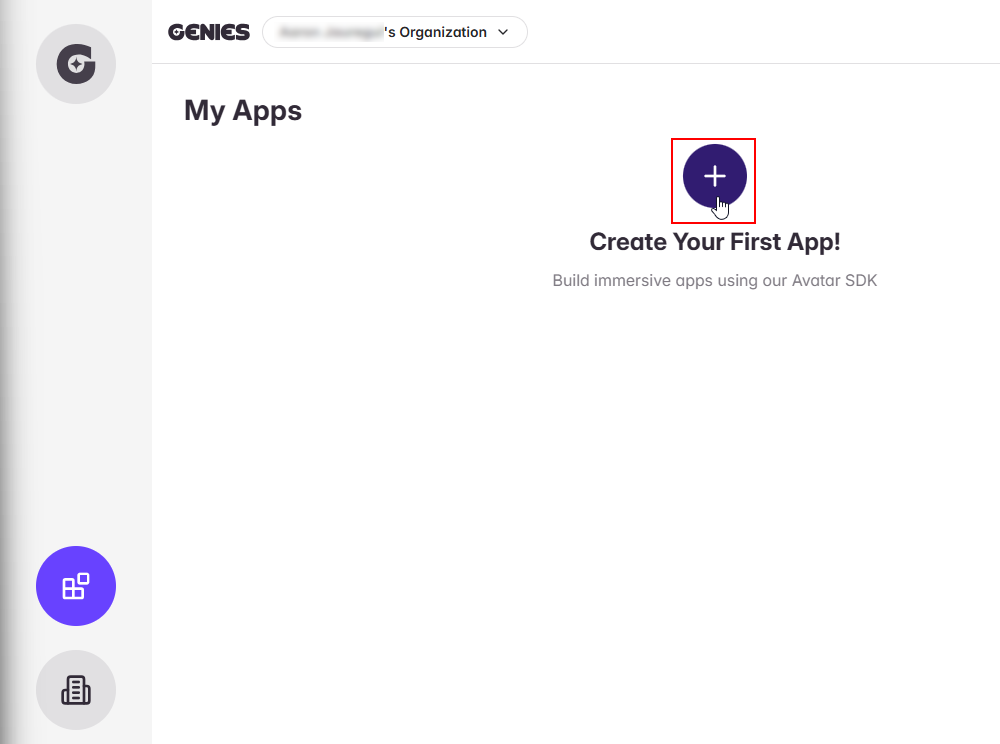
A Genies app is used to grant a Unity project authentication tokens so it can use the Genies Avatar SDK APIs. It also is how you can create and upload custom wearables.
Finish App Creation
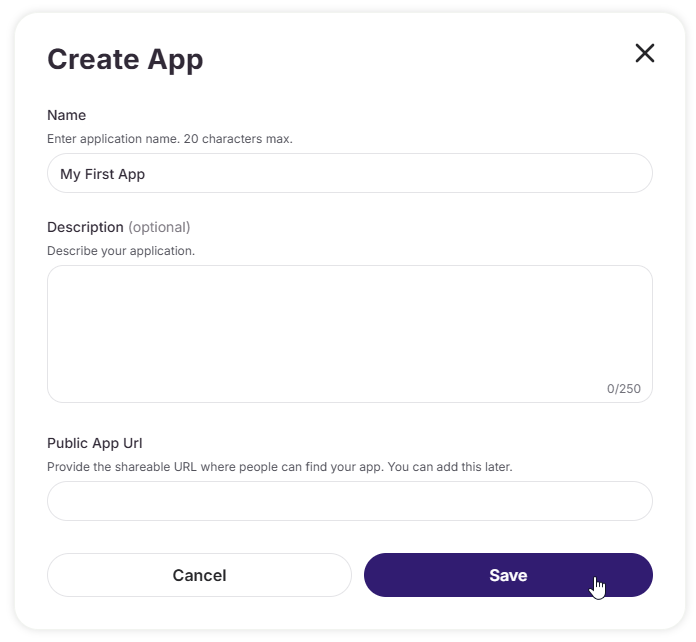
Give the app a name and then click the Save button.
Copy and Paste the Tokens
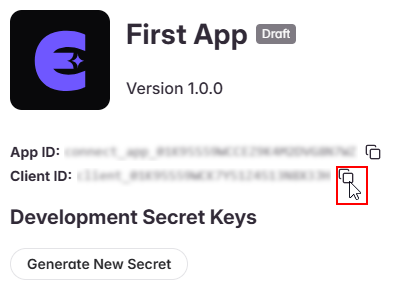
Copy the Client ID Token
Once you created the Genies app, the app's page should open. Copy the client ID token.
Paste the Client ID Token
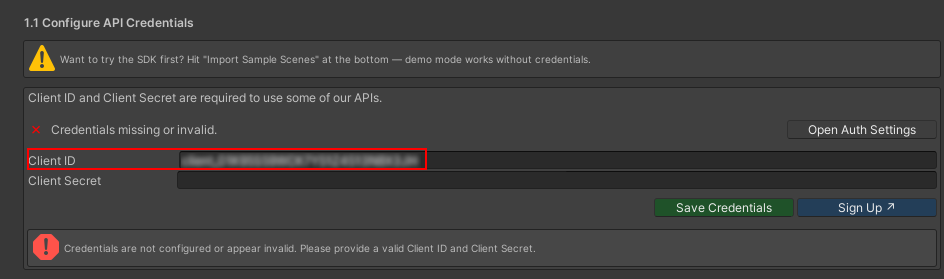
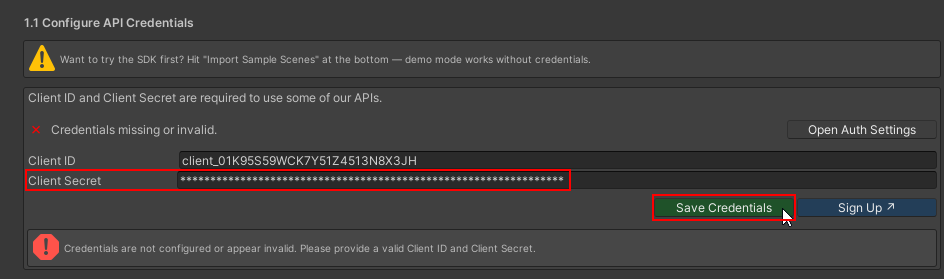
In the Unity Bootstrap Wizard, paste the client ID token in the Client ID field.
Generate a Client Secret Token
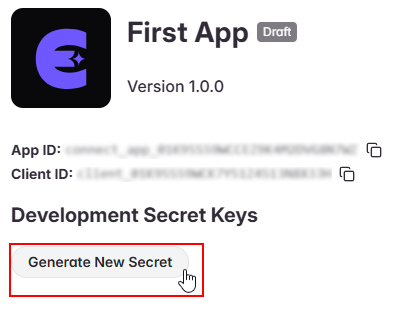
In the Genies app page, press the Generate New Secret button.
Copy the Client Secret Token
A window will appear with the client secret token. Make sure to copy it now because it will not be displayed again once the window is closed.
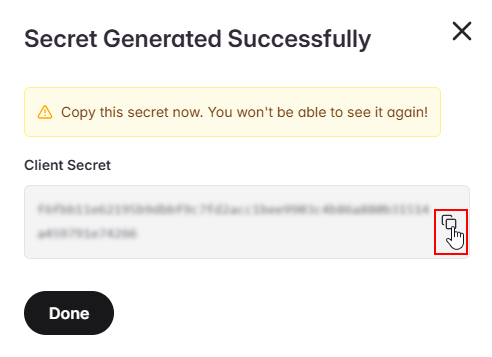
You can generate a new client secret token if you close this window without copying it.
Paste the Client Secret Token
In the Unity Bootstrap Wizard, paste the client secret token in the Client Secret field. Then click the Save Credentials button.
Confirm Credentials
If the credentials were saved correctly, there should be a pop-up that confirms the installation is complete.

Try Sample Scenes
The Genies Avatar SDK package is now installed and the Unity project is setup to use it. A good place to start is to check out the Sample Scenes page.
Click the Import Sample Scenes button at the bottom of the Bootstrap Wizard.
