Genies Tools Blender Add-on
Genies Tools Blender add-on gives users access to powerful tool our internal team uses to help get assets ready to bring into the Genies app.
Currently, our tool runs a preliminary check on models to make sure they meet they clear the initial criteria for optimized app performance. These checks include:
- Looking for excessive polygon counts and n-gons
- Cleans the mesh of issues such as non-manifold geometry
- Removes excess materials
- Corrects UV map names and makes sure everything is on one UDIM
We have plans to expand the capabilities of this add-on to assists with user development of Avatars and Experiences.
Download
Download here: genies_tools.zip
How to Install
Download the Add-on
Download the add-on and store it in a location that’s easy to find.
We need to figure out where users can download the add-on.
Edit Preferences
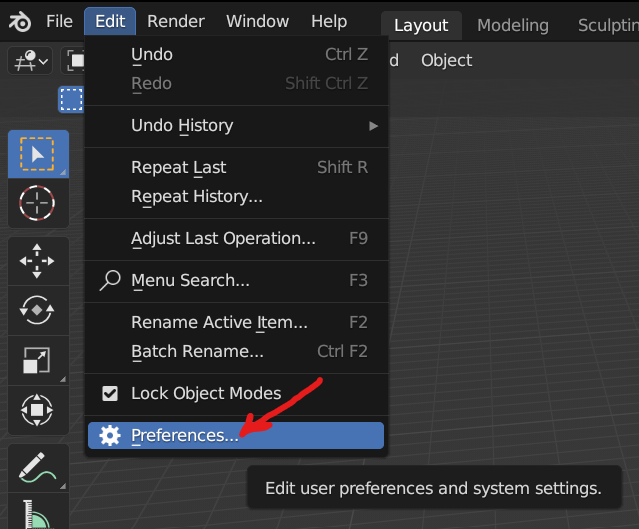
In Blender, Go to Preferences by selecting Edit > Preferences.
Install Menu
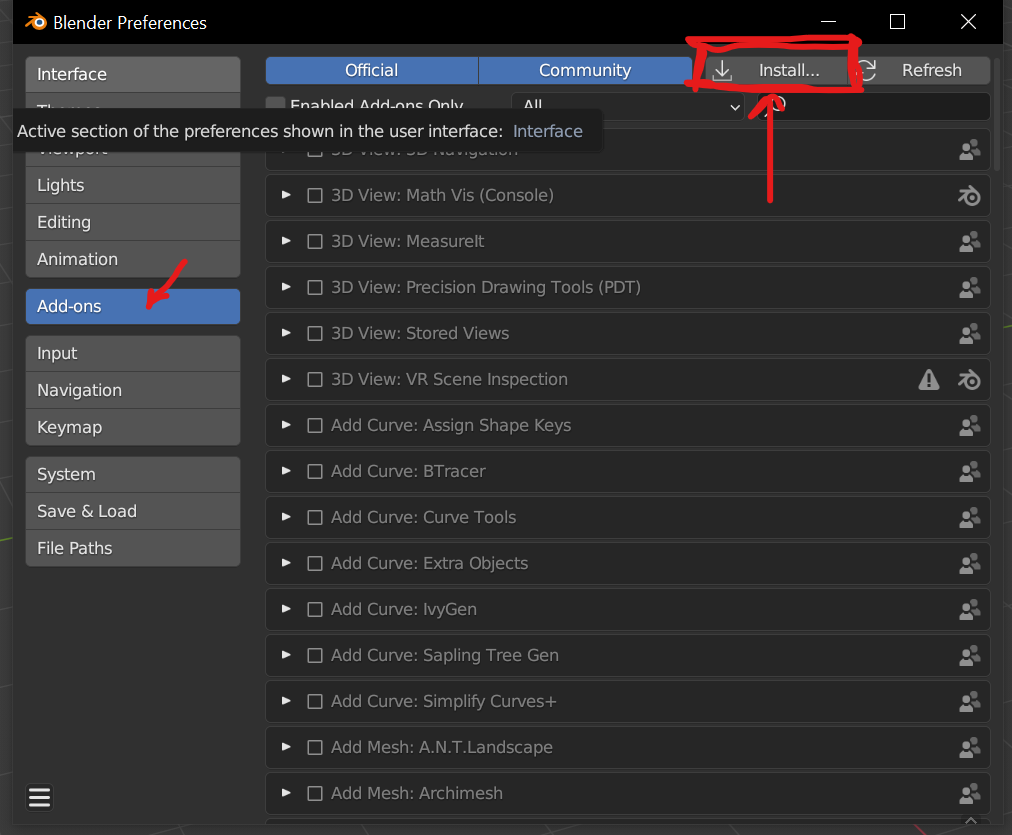
In the Add-on window (left panel), click Install (top right).
Install Add-on
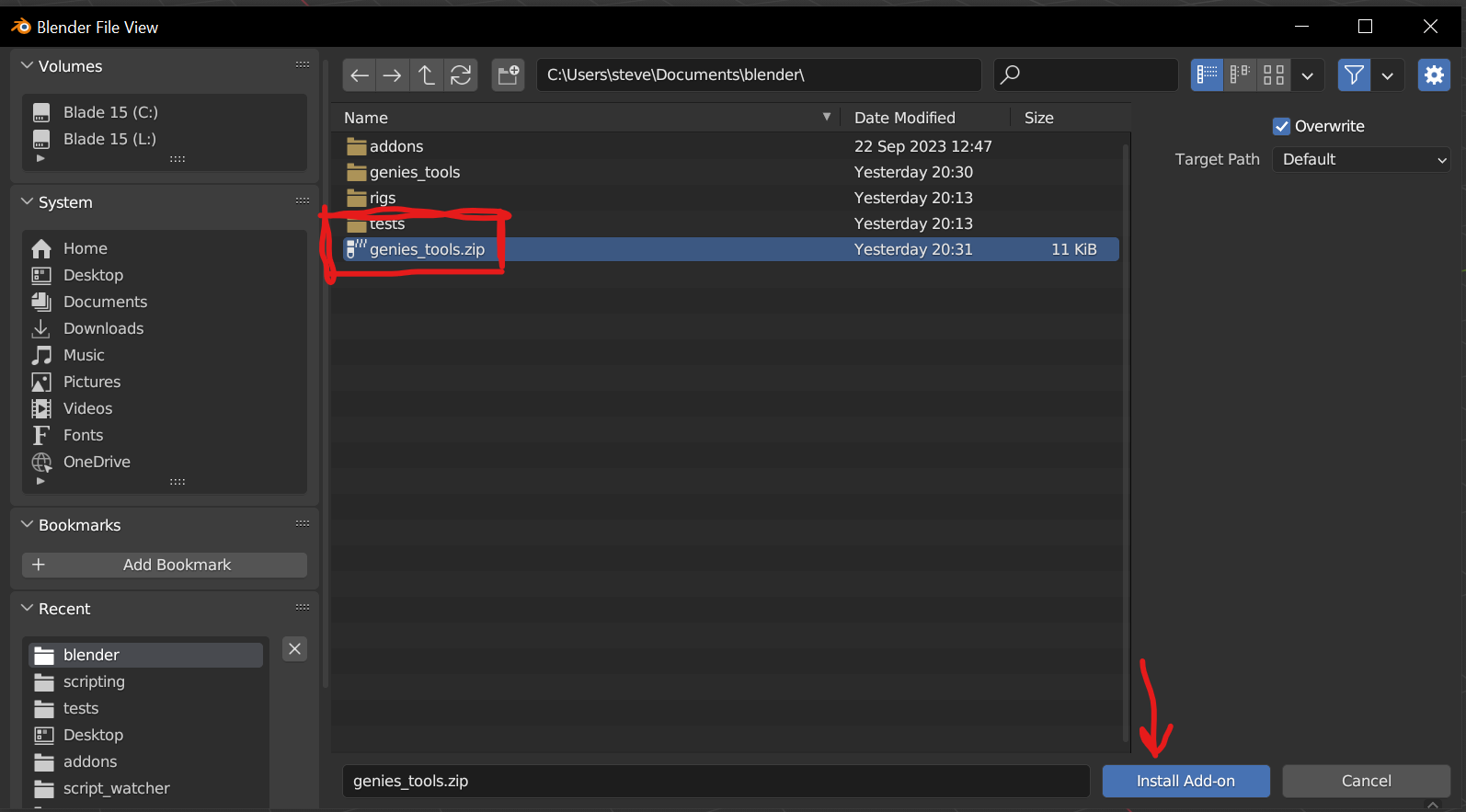
Navigate to the genies_tool.zip file. Click Install Add-on.
Register Add-on
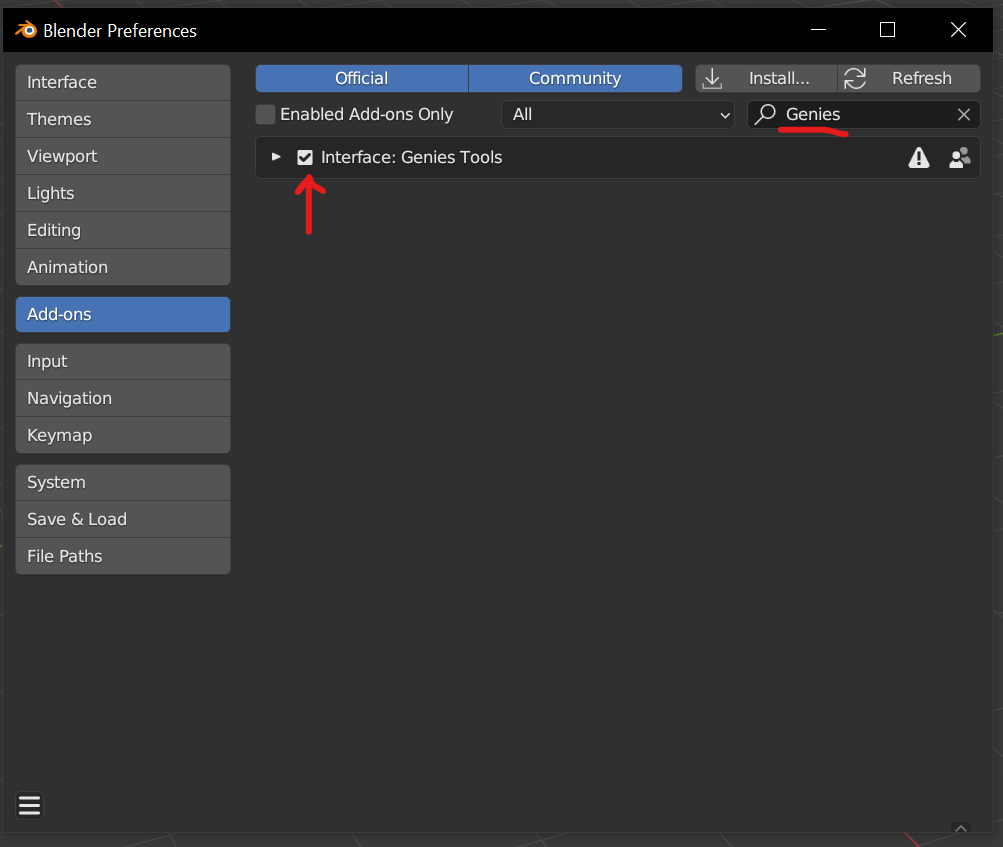
Type Genies in the search bar (top left). Click the box next to Interface: Genies Tools.
How to Use
Check Model
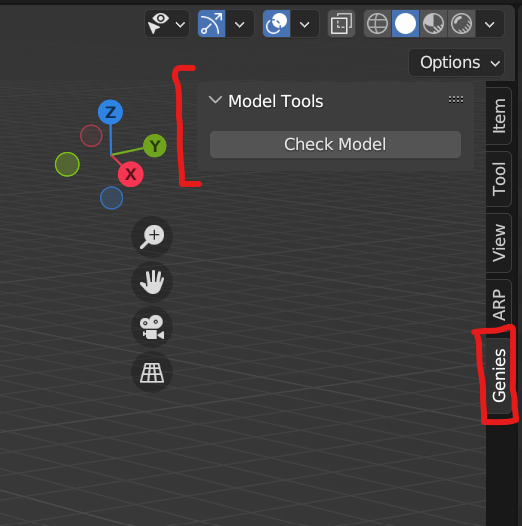
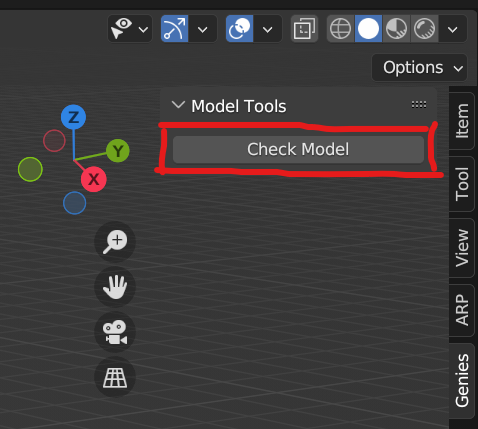
When you’re ready to submit your model, navigate to the Genies Viewport Tab and click the Check Model button.
Errors
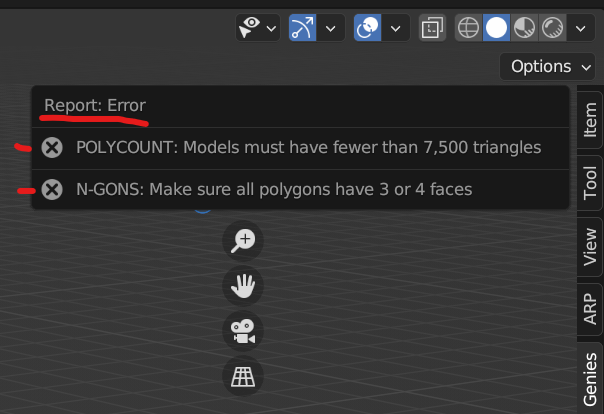
If there are corrections that need to be made, the user will get a list of what needs to be done.
Automatic Fixes
Some fixes are automated and will be applied to the user’s model. (It’s not necessary but, if you are curious, the Info window will print out a log of these changes).
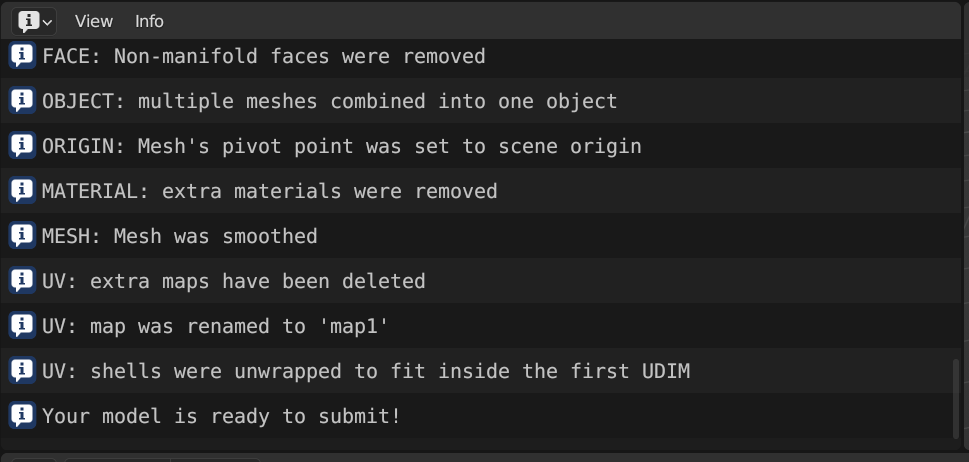
Success
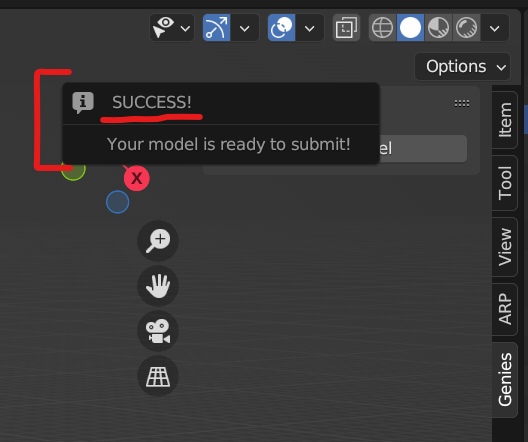
When the user’s model is ready to submit, they will receive a “SUCCESS!” notification.